
Training Video Overview #
YuJa Panorama has provided us a recording of a Panorama training session conducted for UMW on 12/8/25. This video serves as an introduction to the tool. Many of the same concepts are shared in written format in the document below.
What is YuJa Panorama? #
YuJa Panorama is a platform designed to support faculty in making course materials more accessible to students. It reviews your Canvas content for accessibility concerns, offers actionable feedback, and generates alternative formats—like audio and text-only versions—that students can choose based on their needs.
Panorama does not scan all content in a Canvas course. Some content will need to be reviewed manually by the instructor.
Panorama scans and identifies issues with content added directly by the instructor, such as:
- Document files uploaded to Canvas, such as Word docs, PowerPoints, and PDFs
- Content created directly inside Canvas, such as pages, assignments, and quizzes
- Core Canvas areas like Discussions, Modules, and Announcements
Panorama does not scan and identify issues with:
- Content added into a course by another plugin or tool, such as digital textbooks or Coursera
- Files that live outside of Canvas in places like Google Drive, OneDrive, Dropbox, SharePoint, or external websites
- Videos that are hosted on external platforms. It can flag if a YouTube video has been auto-captioned but it doesn’t verify the quality of those captions.
The Panorama website has a list of content specific accessibility issues that can be resolved with Panorama. Note we have Full-circle Remediation and Structural Remediation.
Additional support and tutorials are available on the YuJa Panorama Help Center.
Course Reports #
You can access the Course Report from the Panorama link in your Canvas Course Navigation. This is a great place to look to get a holistic look at your course because you can see all files being scanned and view the course by issue type (severe, major, minor) so you can know what to tackle first.
Basic Navigation #
Inside Canvas you’ll notice Panorama icons on many course elements, such as pages and files.
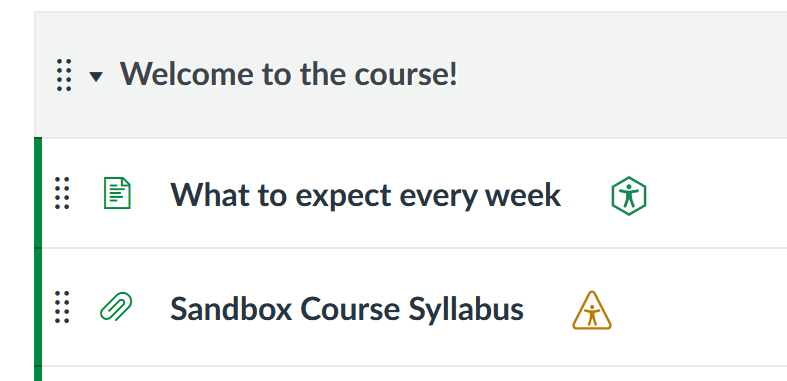
Clicking the icon next to any course item will open the Alternative Formats menu. Clicking the Accessibility Report at the top will show accessibility recommendations for that item.
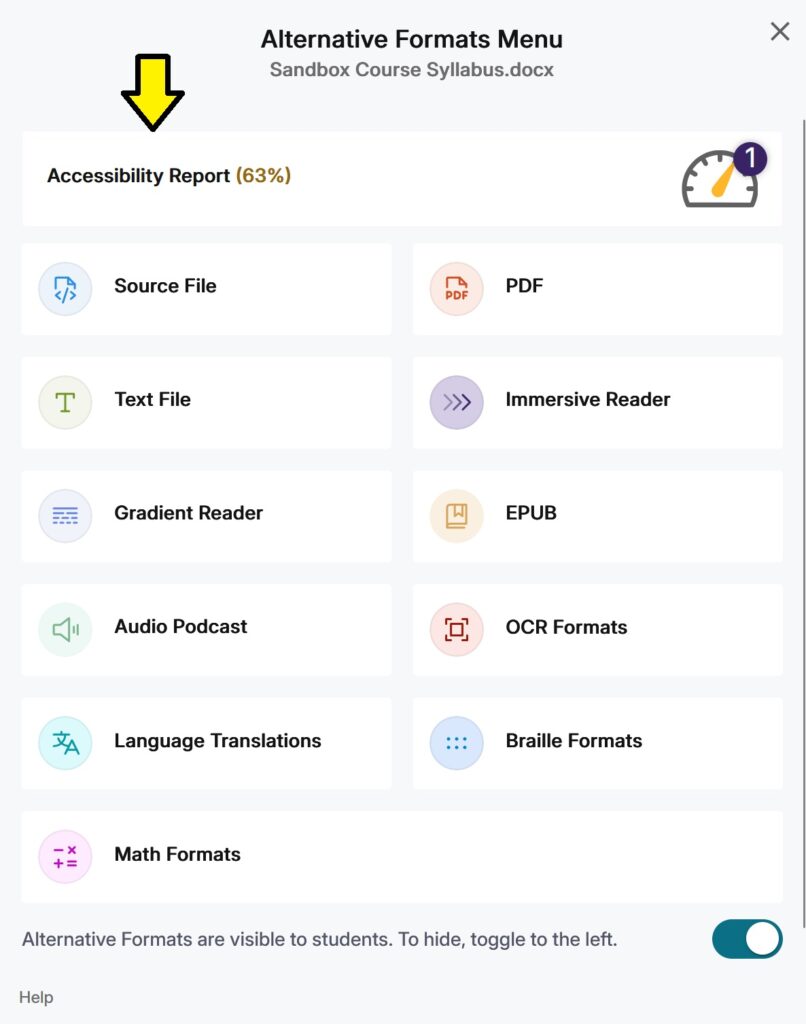
Accessibility Reports provide information in four main ways:
- A preview of your content that highlights where issues appear
- A summary showing the overall score, the number of issues, and their types
- Detailed issue information you can click through to start fixing problems
- Options to update the document or revert to previous versions
A list of alternative formats appears below the Accessibility Report. Clicking any of these format buttons will create a new version of the course item in the corresponding format.
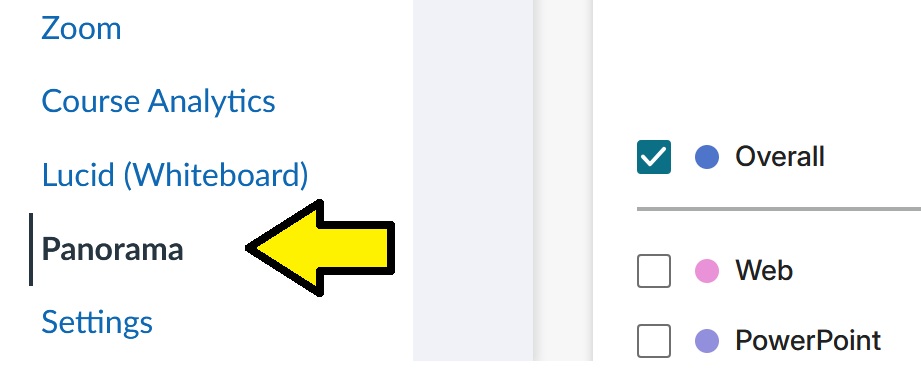
You can access a Course Report and other course-specific Panorama settings from the Panorama link in the Canvas Course Navigation sidebar.
Scores & Icons #
Scores #
Panorama gives each document an accessibility score. Students do not see these scores, they only see the Alternative Formats options.
The scores show how accessible your content is on a scale of 0-100%. This score is not an “accessibility grade,” but rather a tool to help you prioritize fixes and guide you toward a more accessible course.
It’s a good strategy to focus first on improving accessibility for the items with the lowest score (identified with red octagons) to ensure a basic level of accessibility for all course materials. Then address items with higher scores (yellow triangles and green hexagons) to continue to improve course accessibility.
Icons #
 Hexagon, Green: 70% – 100%
 Triangle, Yellow: 30% – 69%
 Octagon, Red: 0% to 29%
 Timer, Purple: Pending or unscanned
 Circle Backslash, Grey: not available (the document has not been scanned or cannot produce an accessibility score)
 Circle Figure, Blue: Icon for students to view alternative formats
Alternative Formats #
Available Formats #
Panorama can generate a wide selection of alternative formats for your course content to help students access the material. These formats are supplemental accessibility aids – instructors should still work to make their original course content accessible.
Panorama can generate content in the following formats:
- PDF: View online or download
- Text File: Plain text without formatting
- Immersive Reader: Customize text, grammar, and reading preferences with audio playback
- Language Translation: Translate into 100+ languages for download
- Note: By default Language Translation is off. If you would like to turn this functionality on in your course see Managing Available Formats section below.
- Gradient Reader: Adds color gradients for easier visual tracking
- EPUB: Ebook format for reader apps
- Braille: Grade 2 braille (requires braille reader)
- Audio Podcast: Listen online or download
- Enhanced HTML: Customize document appearance using accessibility tools
- OCR: Converts images with text into searchable, screen-reader-friendly text
- Math Formats: Converts math content into LaTeX, Math Text, MP3, or MathML
You can find a detailed list of all available formats on YuJa’s Getting Started with Panorama guide for instructors.
Managing Available Formats #
You can determine which alternative formats are available to students.
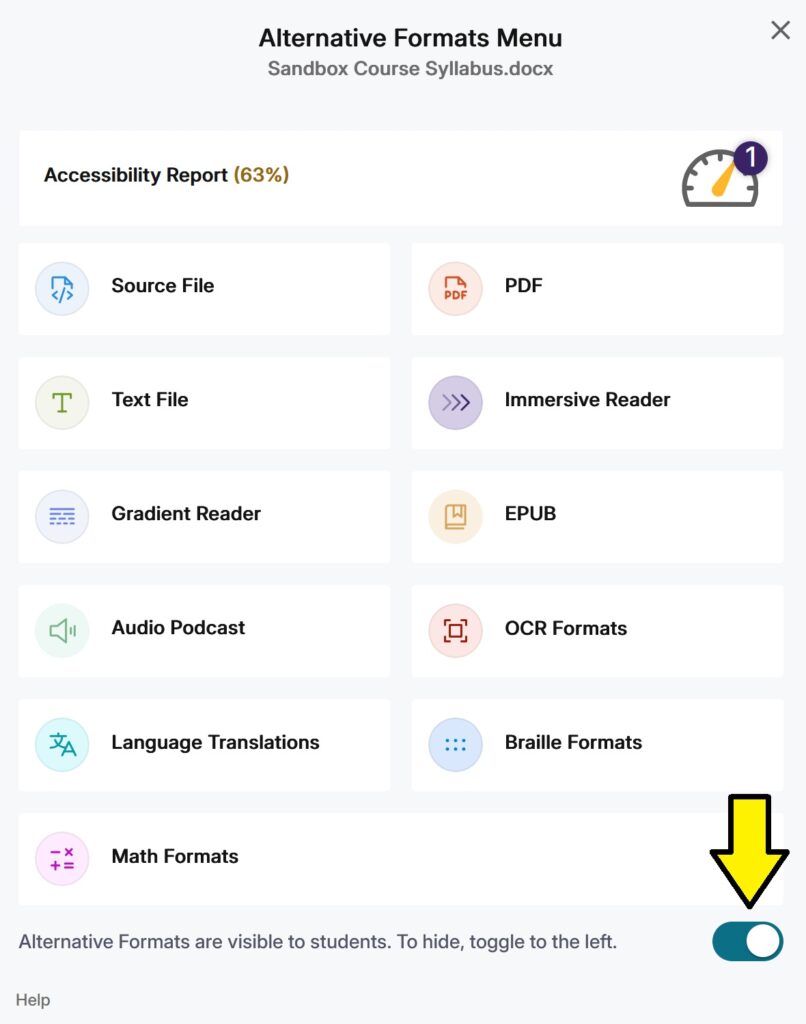
To turn off alternative formats for an individual course item, use the toggle at the bottom of the Alternative Formats menu for that item.
You can turn on/off all or specific formats for an entire course using the Panorama link in the course navigation sidebar.
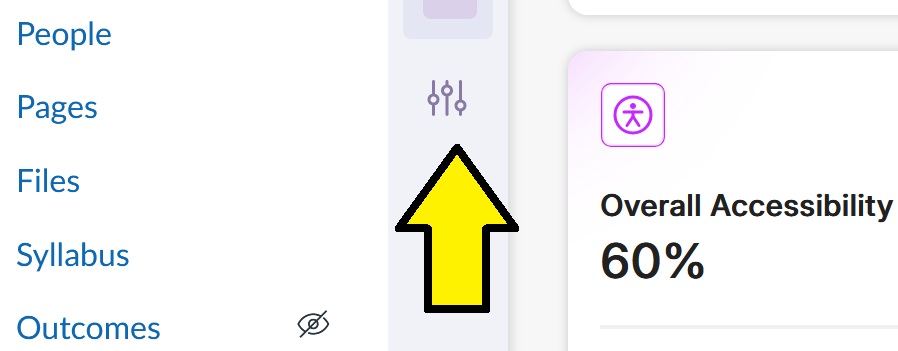
- Go to Panorama link in Course Navigation and click on the Configuration icon (note: hovering over icon will open up the panel).
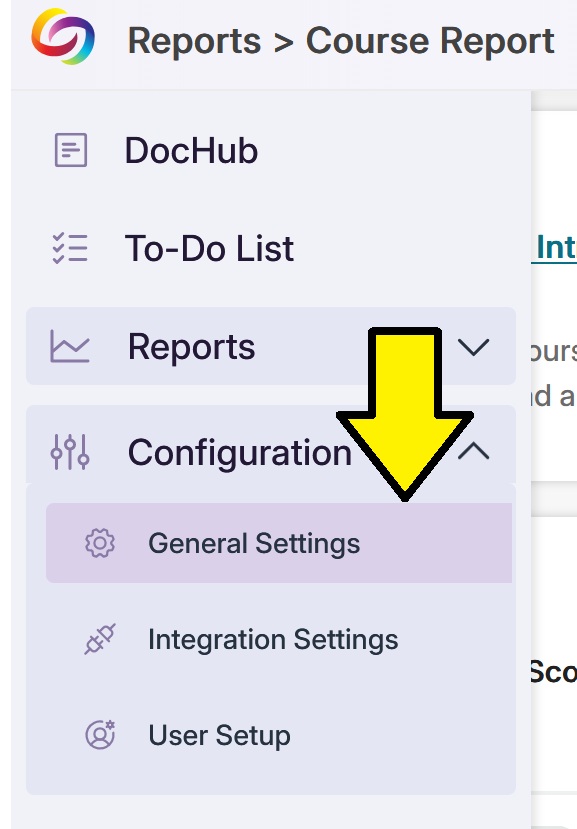
- From the Configuration drop-down select General Settings
- On the right hand side of the General Settings page under the Alternative Format Menu Options you can toggle on and off different formats for the entire course.
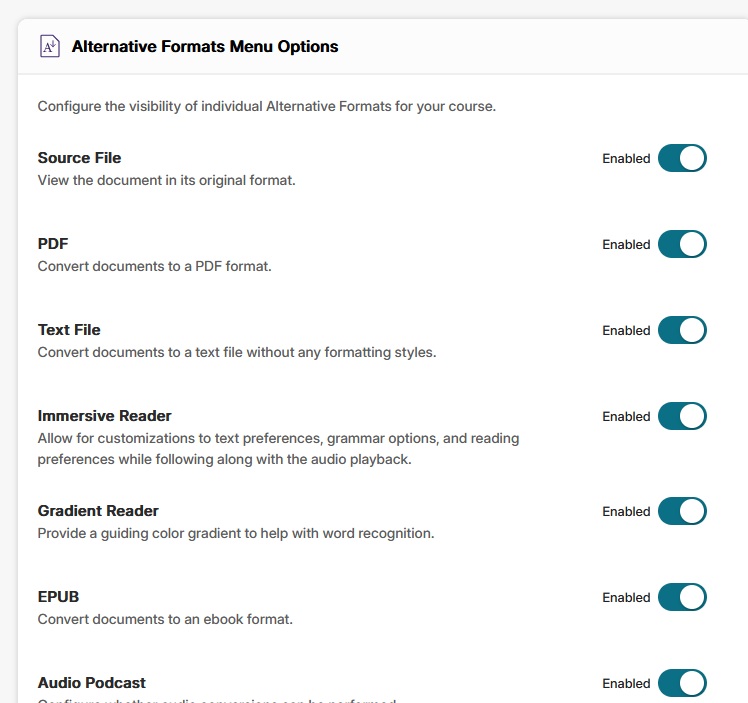
We recommend keeping alternative formats enabled for the course to support students who could benefit from them.
Where to Get Help #
There are a number of place to get additional help with YuJa Panorama:
- Visit the YuJa Panorama Help Center for additional documentation and tutorials
- Contact YuJa Panorama Support or e-mail them at support@yuja.com
- Contact UMW Title II Accessibility Team at t2access@umw.edu for assistance with accessibility questions and issues
- Book a Canvas Accessibility consultation with Digital Learning support or the Center for Teaching