
Canvas Commons is a tremendous resource of free course content. It can be useful to browse through just for inspiration, or to import course elements (including quizzes, modules, pages, or even entire courses) directly into your own Canvas courses.
Follow the steps below to access the Commons and import content into your course.
Open the Commons #
After logging into Canvas, click the “Commons” button in your Canvas sidebar to go to the Commons dashboard.
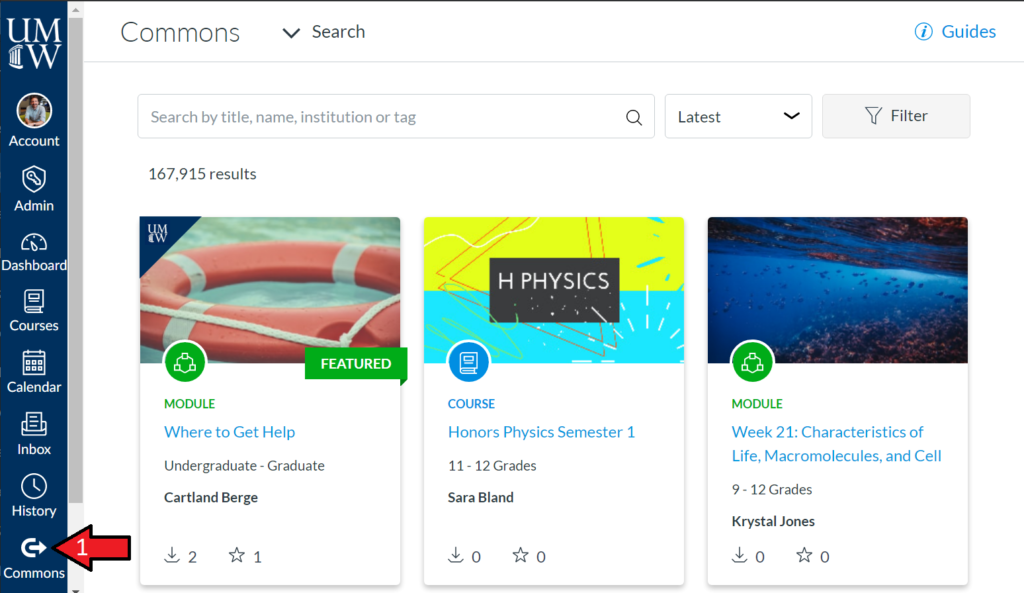
Search for Content #
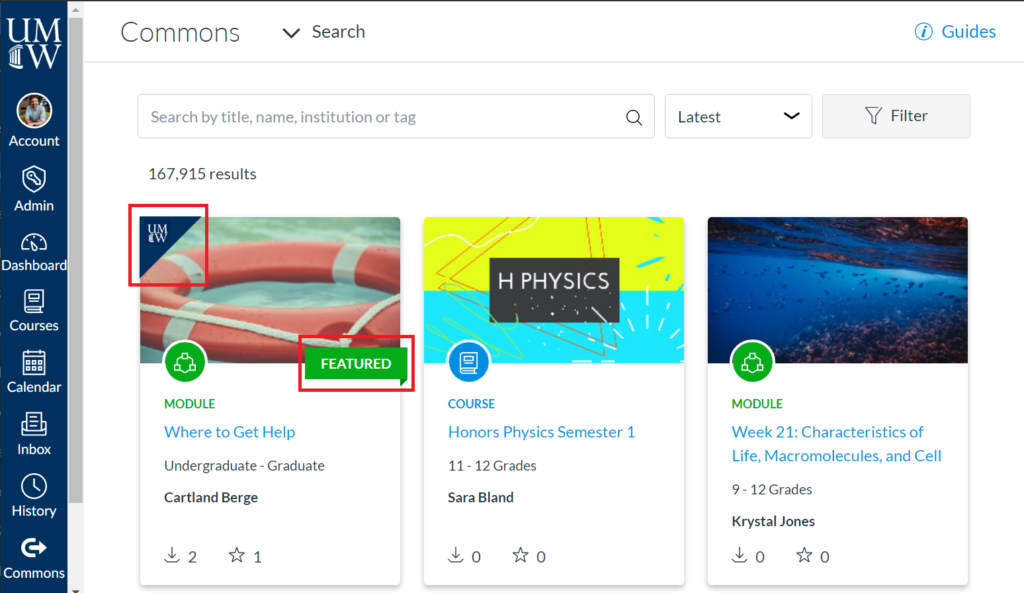
The default view shows a number of available resources for Graduate and Undergraduate courses. DLS and Center for Teaching staff have selected a few Featured resources that will appear first with the “Featured” tag. Content designed specifically for UMW faculty will include a UMW banner in the top left corner.*
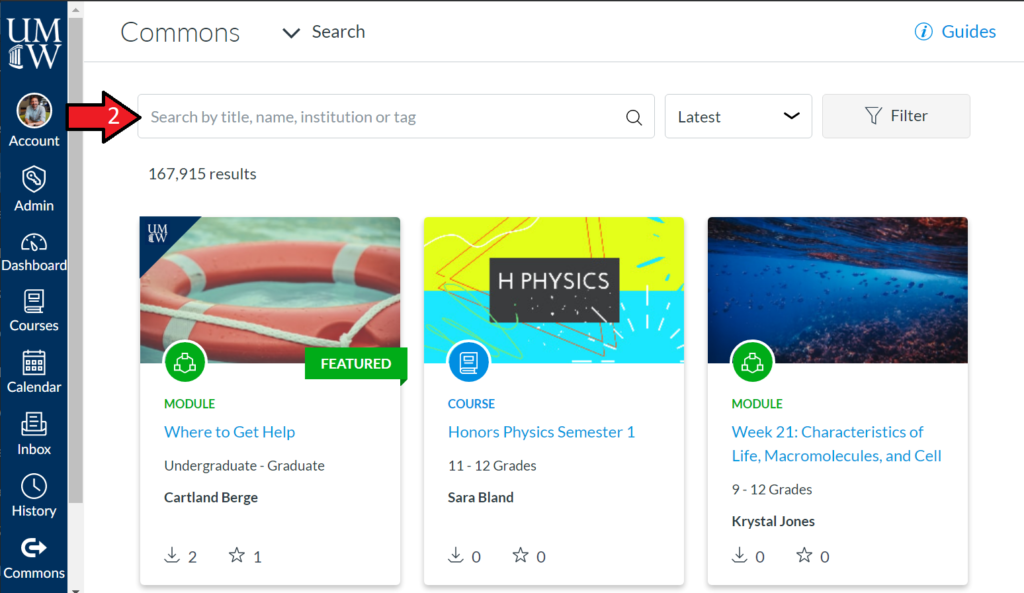
If you are looking for specific content, you can type search terms in the search bar.
UMW’s default filters limit searches to Undergraduate and Graduate resources only, but you can widen your search to include K-12 resources using the Filter button.
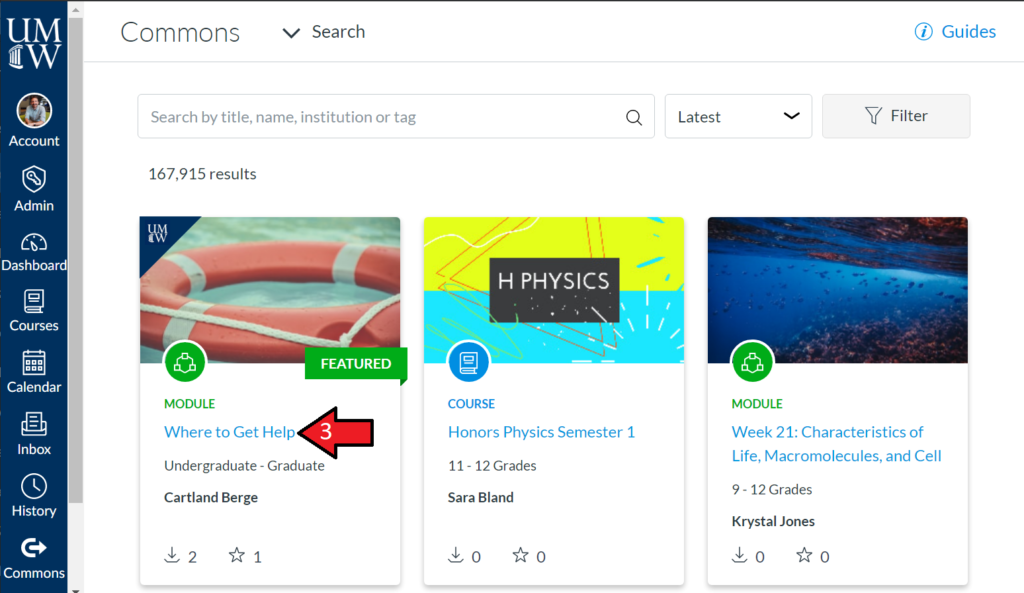
Open a Commons Resource #
Click the title of the content to open it.
Preview the Resource’s Content #
On the page that opens, you can view a preview of the content. Make sure this is the content you are looking for. When you are ready to add the content to your course, click Import/Download.

Import Content into your Canvas Course #
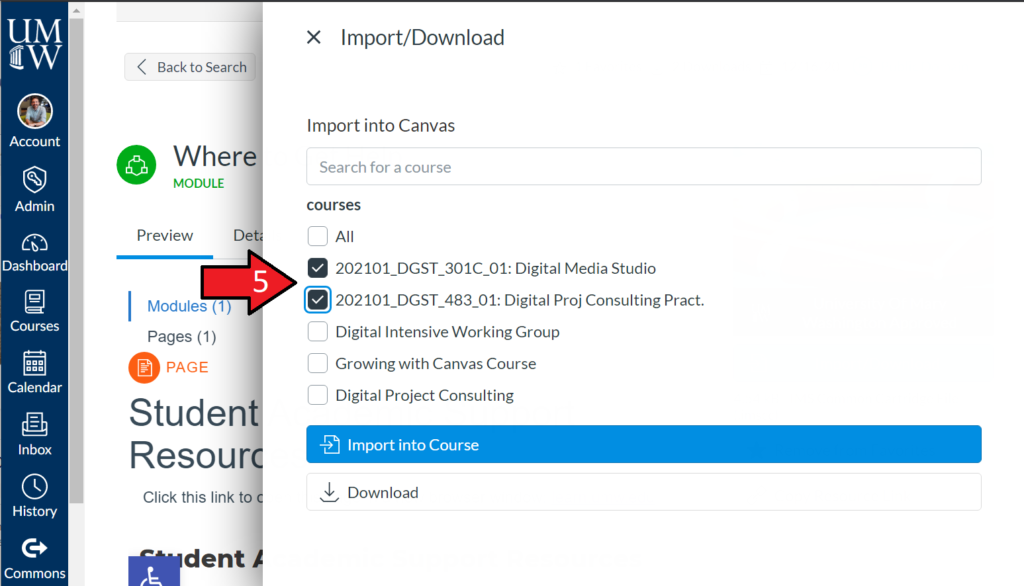
Select the courses that you would like to import the content into, then click Import into Course.
Note: Be extremely careful when importing full courses, as they can overwrite existing course content.
View the Imported Content in your Course #
Check in your Canvas course to see the imported content. You may need to Publish this content before students will see it. Green check marks indicate it is published.
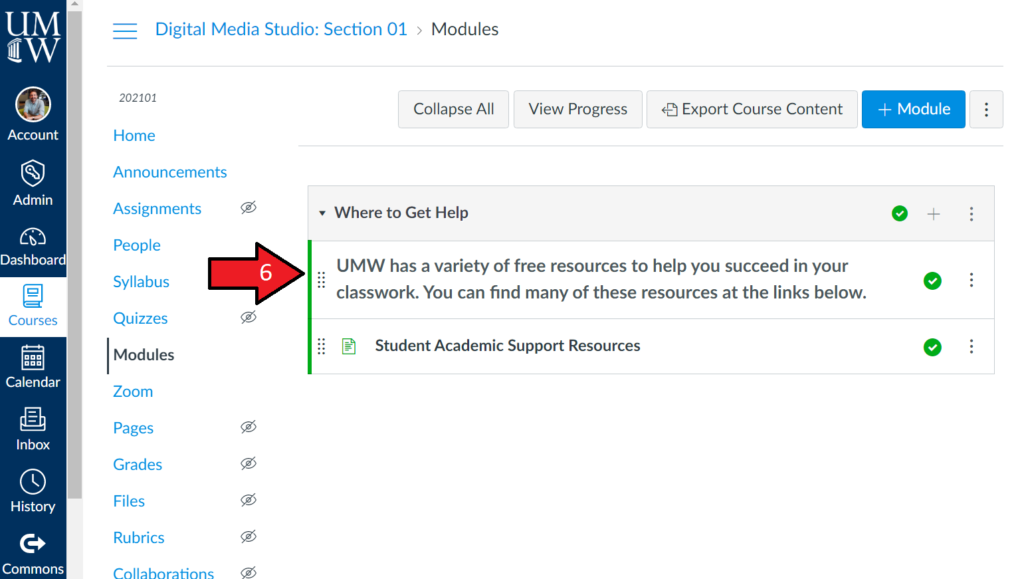
Once the Commons content is imported into your course, you can edit, add to, or delete any of the elements as you see fit. Your changes will only impact the content in your course, not the content people see in the Canvas Commons. If you ever want to download a fresh, unedited version, you can just repeat the steps above!
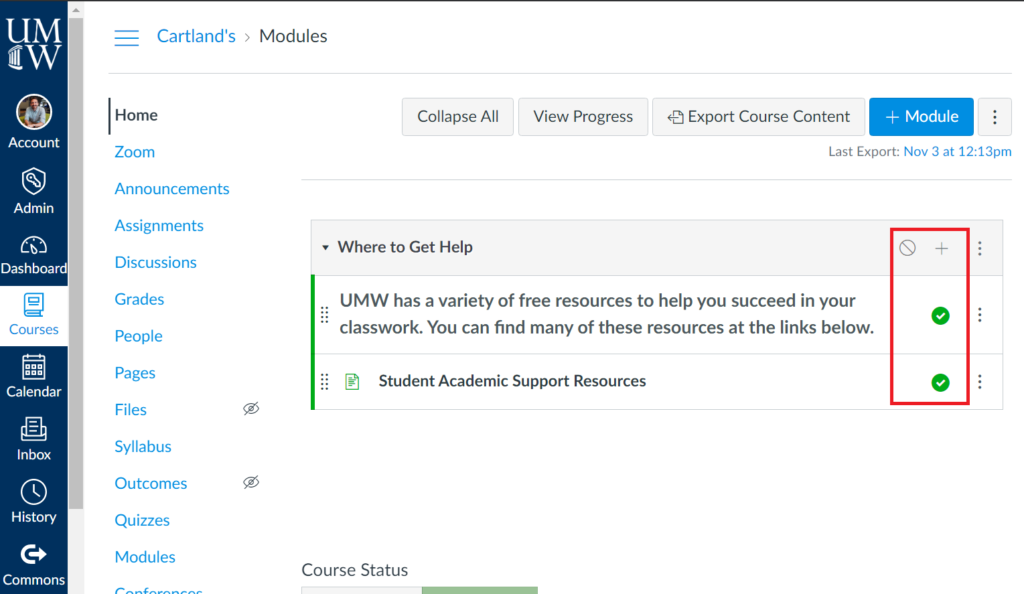
Note: Keep in mind that for Canvas Modules (like the one pictured here), both the Module and all its individual items need to be published. In the example below, students would not see any of the content because the items are published but the Module itself is not.
*If you have created Canvas Commons content that you would like to be considered for listing as UMW approved content, please contact Digital Learning Support.