
Instructure, the makers of Canvas, has created an updated quizzing engine called New Quizzes. The current quiz engine, Classic Quizzes, is available simultaneously with New Quizzes, but eventually Classic Quizzes will be replaced by New Quizzes.
Things To Know #
- New Quizzes is available as a quiz creation option in all Canvas courses at UMW. You are not required to use New Quizzes, but when creating a new quiz, you will be asked to choose between New Quizzes or Classic Quizzes.
- New Quizzes will fully replace Classic Quizzes on a date yet to be announced by Instructure. However, once we reach that date, Instructure will retire Classic Quizzes, and you will no longer be able to create, edit, or use Classic Quizzes in your courses.
- If you want to continue to use previously created Classic Quizzes, you will need to migrate your current Classic Quizzes to the New Quizzes. Instructure has created a migration tool in Canvas to help you to do this.
Knowing that Classic Quizzes will eventually be retired, there are several things you can begin to do to have a smooth transition to New Quizzes:
- Learn and try out New Quizzes – more information that can help you get started is included below.
- Create new assessments using New Quizzes instead – you won’t have to worry about migrating them later.
- Migrate your Classic Quizzes to New Quizzes – you can do this one quiz at a time or for a whole course by using the migration option in the Course Copy feature.
Some features in New Quizzes you may find beneficial:
- Student quiz accommodations can be setup for the whole duration of the course, not just quiz by quiz.
- Printing quizzes is now possible.
- There are several new question types, including Stimulus, Ordering, Categorization, and Hot Spot (NOTE: The Hot Spot question type is not accessible).
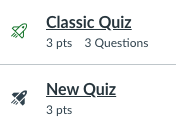
- The “rocket” icon is different. The Classic Quizzes “rocket” icon is outlined, but the New Quizzes icon is filled in.
Consider Creating a Sandbox Course in Canvas #
A good way to experiment with new features in Canvas is by creating a Sandbox Course. In the Sandbox Course you can try things out and not worry that you are causing any problems in your current courses or making changes to past courses that you want to use again. This might be a good way to learn New Quizzes before using it in your live courses.
This guide shows you how to build your own Sandbox Course.
New Quizzes Overview #
This video gives a brief overview of New Quizzes:
Choosing between Classic Quizzes and New Quizzes #
As of January 29, 2025, you have the opportunity to choose between Classic Quizzes and New Quizzes anytime you create a quiz.

- Click the “Quizzes” link in the navigation menu.
- Click the “+Quiz” button.

3. In the pop-up box, choose which quiz engine you want to use.
4. You can “remember” your choice by clicking the box, then click “Submit.” so the quiz engine selection box will no longer appear.
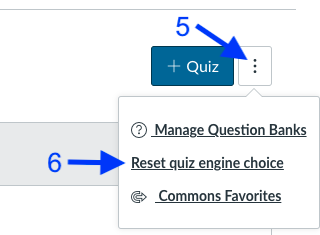
5. If you later want to change your choice and get the selection box to return, click the three dots to open the menu.
6. Click the “Reset quiz engine choice” link and you will again see the selection box when creating a quiz.
Getting Started with New Quizzes #
The Canvas Community site offers these New Quizzes Instructor Guides that you may find useful as you transition to New Quizzes. The links below take you to specific guides that could be helpful as you are getting started.
- Create a New Quizzes assessment has basic info about adding, editing, and deleting questions
- Edit, duplicate, or delete New Quizzes
- Explore the question types:
- Reorder questions, add feedback, and insert stimulus content
Migrating Classic Quizzes to New Quizzes #
These guides walk you through this process:
- Migrate one Classic Quiz to New Quizzes
- Migrate multiple Classic Quizzes from a course to New Quizzes
New Quizzes Item Banks #
“Question Banks” from Classic Quizzes now called “Item Banks” in New Quizzes.
- Overview on how to manage Item Banks in New Quizzes
- How to create an Item Bank
- Move a Classic Quizzes Question Bank to an Item Bank in New Quizzes
- Adding content to an Item Bank
- Move or Copy questions from one Item Bank to another
- Adding an individual Item Bank question to an assessment, or adding all items or a random set of questions from an Item Bank into a New Quiz
Additional Resources #
- Canvas Support is always available (24/7/365) to assist you with any questions about using New Quizzes, migrating Classic Quizzes, and managing Item Banks.
- Canvas has also created this New Quizzes FAQ.
- New Quizzes is still being developed and improved, so this feature comparison can be helpful in understanding the differences between Classic and New Quizzes as well as the timeline for implementation of other features.